User Documentation
Complete guide to Filename Ninja workflows and features.
Main Principles
- Only files and folders that are visible in the view(s) are eligible for renaming.
- For each rename you can see a preview of the result, before anything is actually renamed.
- Folders are only renamed when Rename folders is enabled.
- Renaming rules are applied in the same order as they are defined in the UI (from top to bottom). Automatic numbering is applied last.
- Whether matching is case-sensitive or not depends on relevant configuration in the Settings dialog.
- Rename actions in a single session can be undone with the Undo button.
- Settings and last-used rules are preserved between application sessions.
1. Quick Start Workflow
- Choose a folder from the tree.
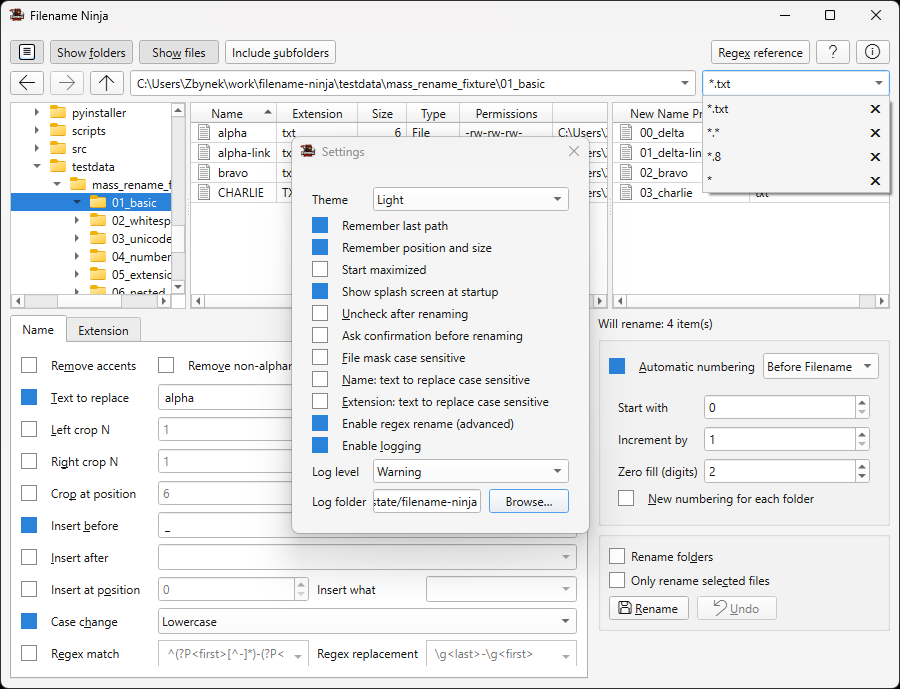
- Set visibility options: Show folders, Show files, and optional Include subfolders.
- Configure rename rules in the Name and Extension tabs.
- Review the preview of the results.
- Click Rename to apply the changes.
IMG_001.JPG, IMG_002.JPG... → project_001.jpg, project_002.jpg...
by combining text replacement and extension lowercase.
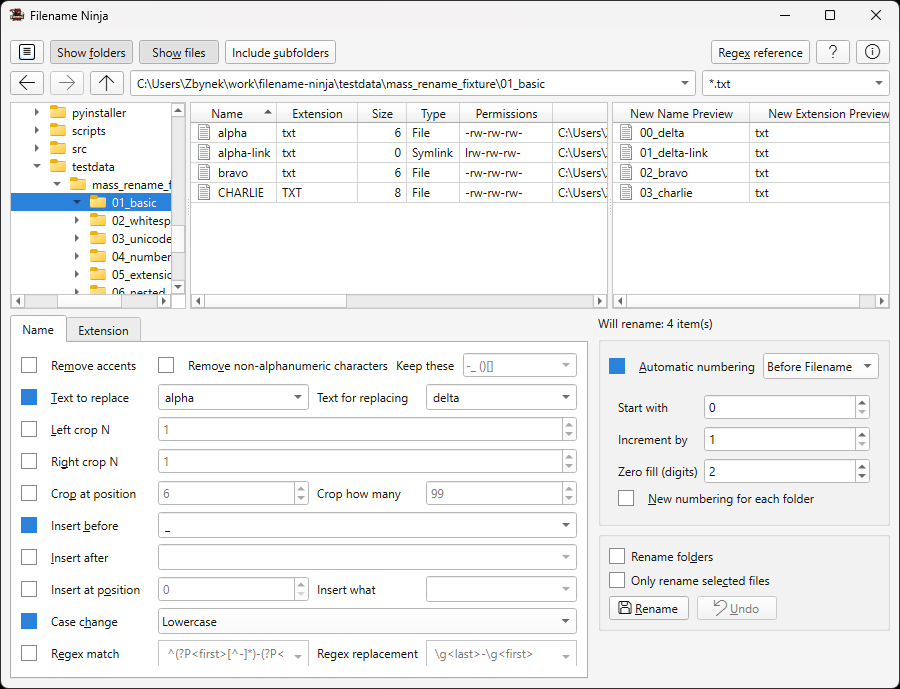
2. Navigation and File Loading
- Back / Forward buttons navigate recent folders.
- Parent folder moves one level up.
- Path field supports typed paths and history or recently used paths.
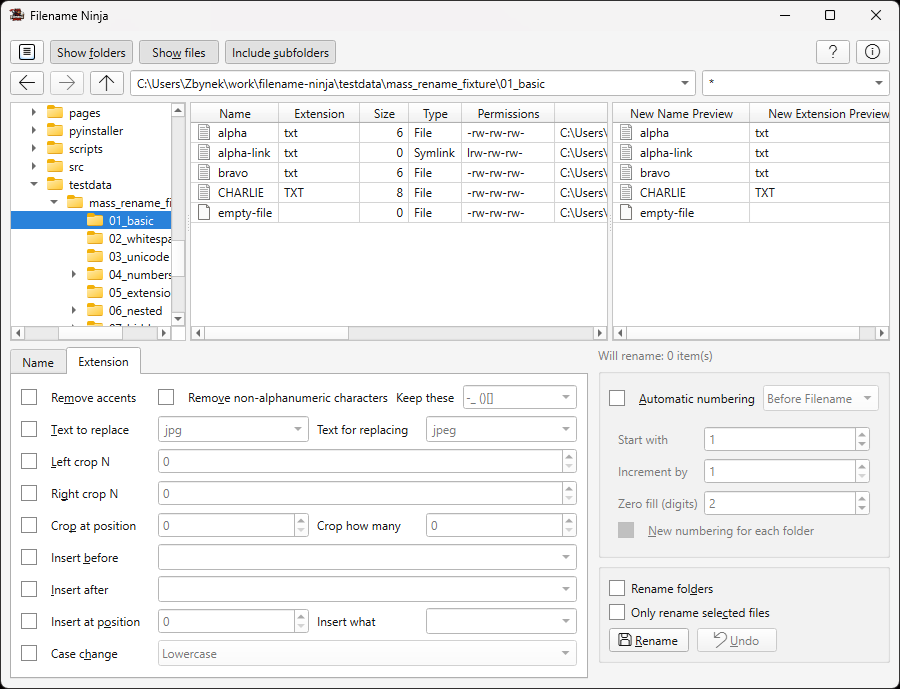
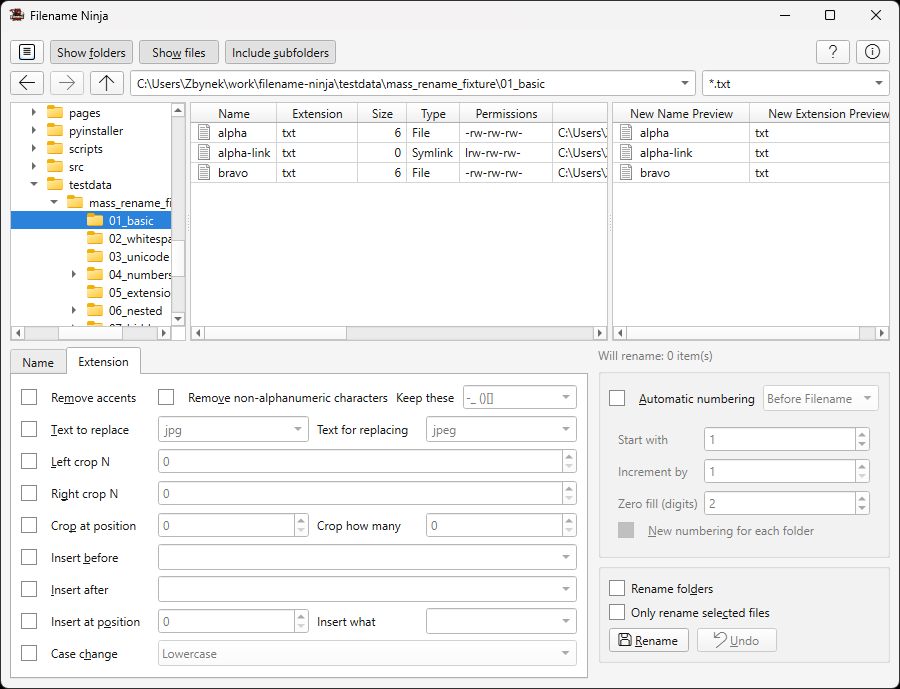
- File mask filters visible items (for example
*.txt,*report*) and also supports history. - Double-click on a folder in the tree or table navigates to it.
*.csv to rename only CSV exports in a mixed folder.
3. Name Tab Operations
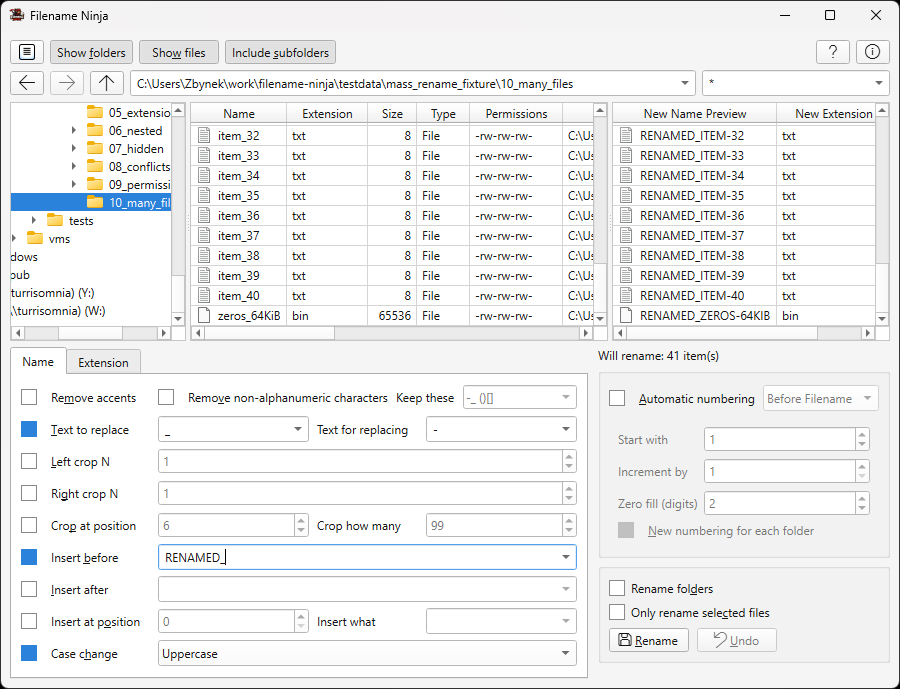
Enable only the rules you need (checkbox on each row).
- Case change (lower/upper/title/etc.).
- Sanitize: remove accents (e.g.
café.txt→cafe.txt) and remove non-alphanumeric characters (e.g.mail@backup%[2025].txt→mailbackup2025.txt) with list of allowed non-alphanumeric characters to keep (with history). - Text replace: simple literal replacement (e.g.
SCANtodocument). - Crop: left/right crop or crop at position (e.g. remove 5 characters starting from third one).
- Insert: before, after, or at an exact position.
- Regex (when enabled in Settings): advanced pattern-based transformations (see section 6 for details).
4. Extension Tab Operations
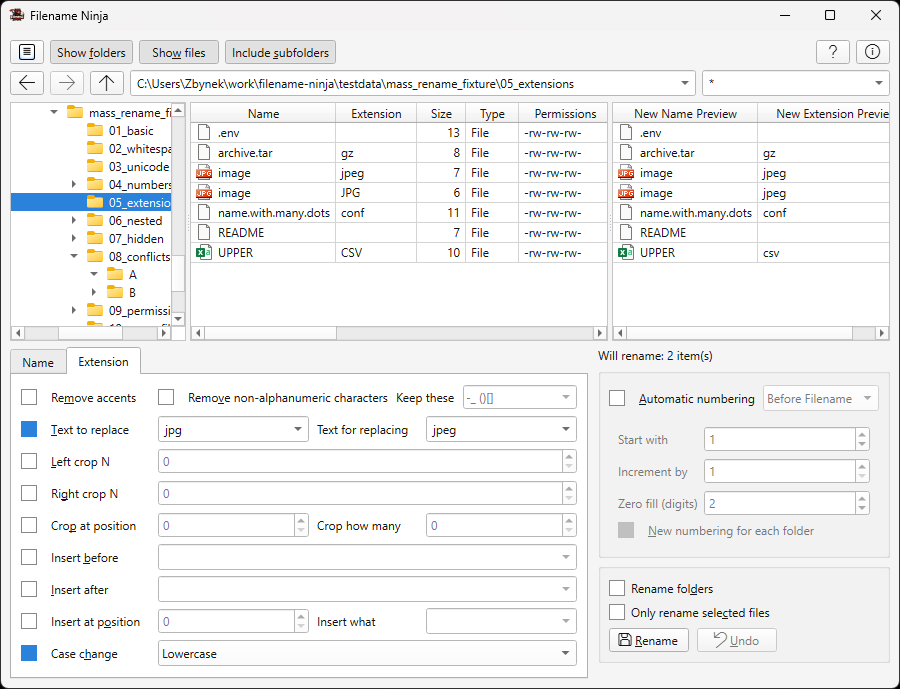
Extension rules work independently from name rules and are ideal for normalizing file formats. The set of available rules is the same as in the name tab, except regex rule is not supported.
photo.JPEG, photo.JPG, and photo.jpeg
to a unified extension policy like .jpg.
5. Automatic Numbering
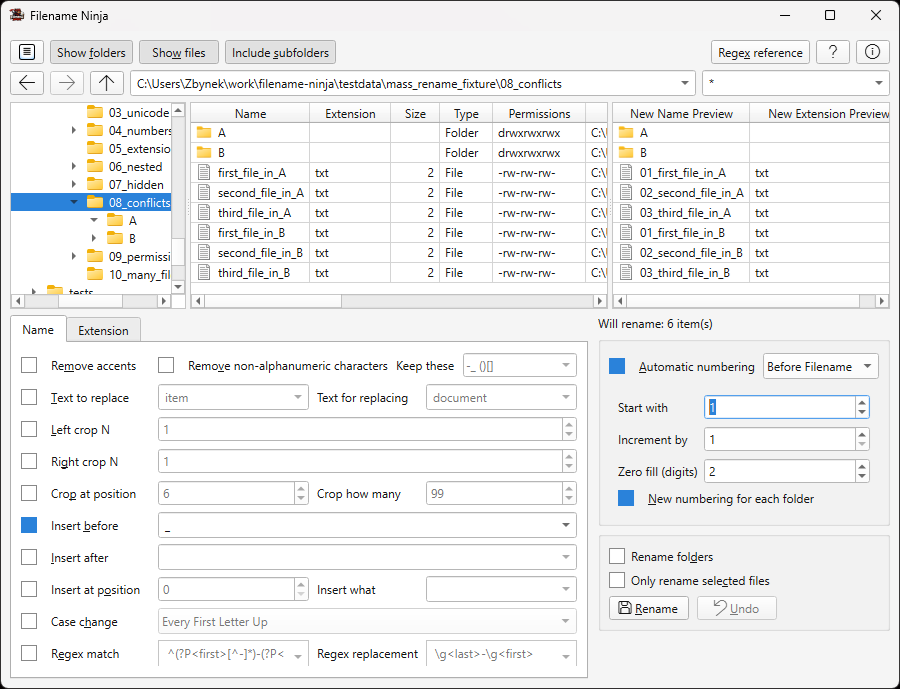
Numbers files sequentially.
- Enable Automatic numbering.
- Select where to insert the numbering (before or after) and to which part (filename or extension).
- Set Start with, Increment by, and Zero fill.
- New numbering per folder: restarts numbering in each sub-folder — this option is applicable only if Include subfolders is enabled.
010, 015, 020, ...
6. Regex Rename (Advanced)
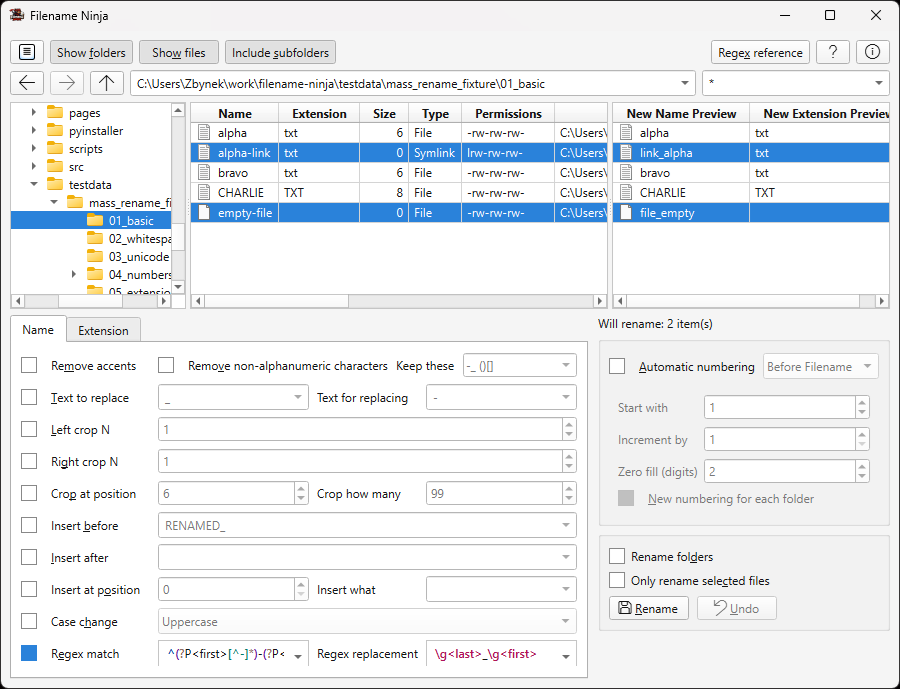
Regex helps when plain text replacement is not enough. For example when parts of a filename should be rearranged or when the part that should be replaced has a variable format and cannot be matched by a simple literal.
You can use the regex reference panel for detailed help by clicking on the Regex reference button.
^(.*)\s\((\d+)\)$ and
replacement \2_\1 turn report (12) into 12_report.
7. Preview, Selection, and Execution Safety
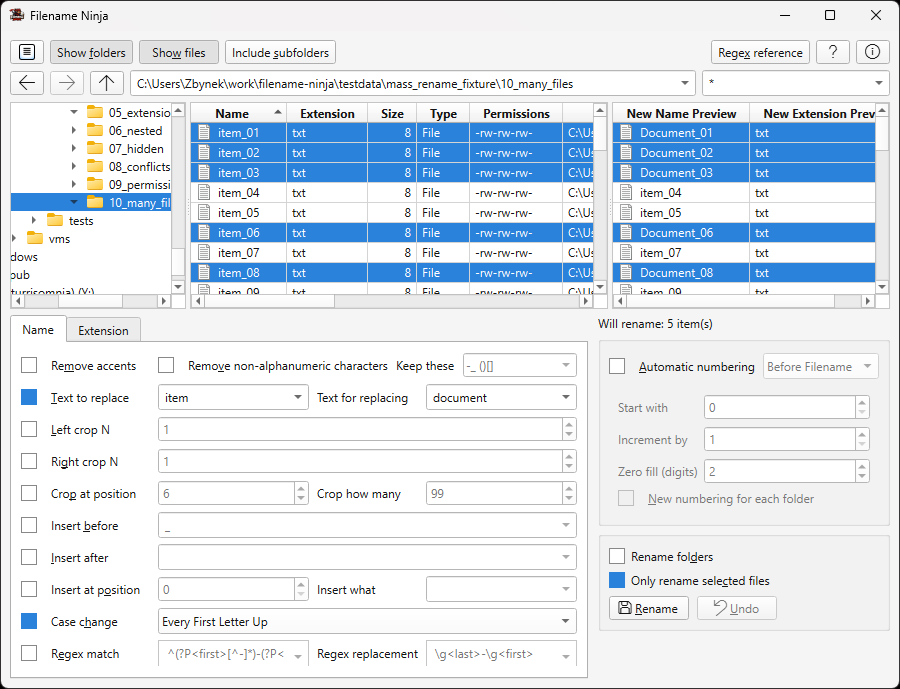
- The plan summary indicates how many renames are currently proposed.
- Use Only rename selected files for targeted changes, by selecting the files to be renamed in the view.
To select multiple files, use Ctrl+Click (⌘+Click on macOS) or Shift+Click. - Use Rename folders only when folder names must change too.
- Confirmation dialogs protect against accidental execution, but can be disabled in settings.
- Undo reverts the latest rename operation. Can be used multiple times to revert all rename operations in a session.
8. Settings, History, and Logs
- Settings stores behavior preferences and UI options.
- History in path, mask, text replace, insert, and regex fields speeds up repeated tasks.
- Enable logging in settings for diagnostics when troubleshooting.
9. Best Practices
- Use either a restrictive file mask or selection of individual files to limit scope and avoid renaming unintended files.
- Apply one logical rule group at a time for easier review.
- Use preview as the source of truth before pressing rename.
- Keep backups for critical folders.
Logging
Filename Ninja can write an application log to help troubleshoot issues.
- Enable logging in Settings → Enable logging.
- Select verbosity via Log level (
ERROR,WARNING,INFO,DEBUG). - Check the log file location in Settings → Log file.
Log files are rotated automatically (5 files × 1 MiB).